
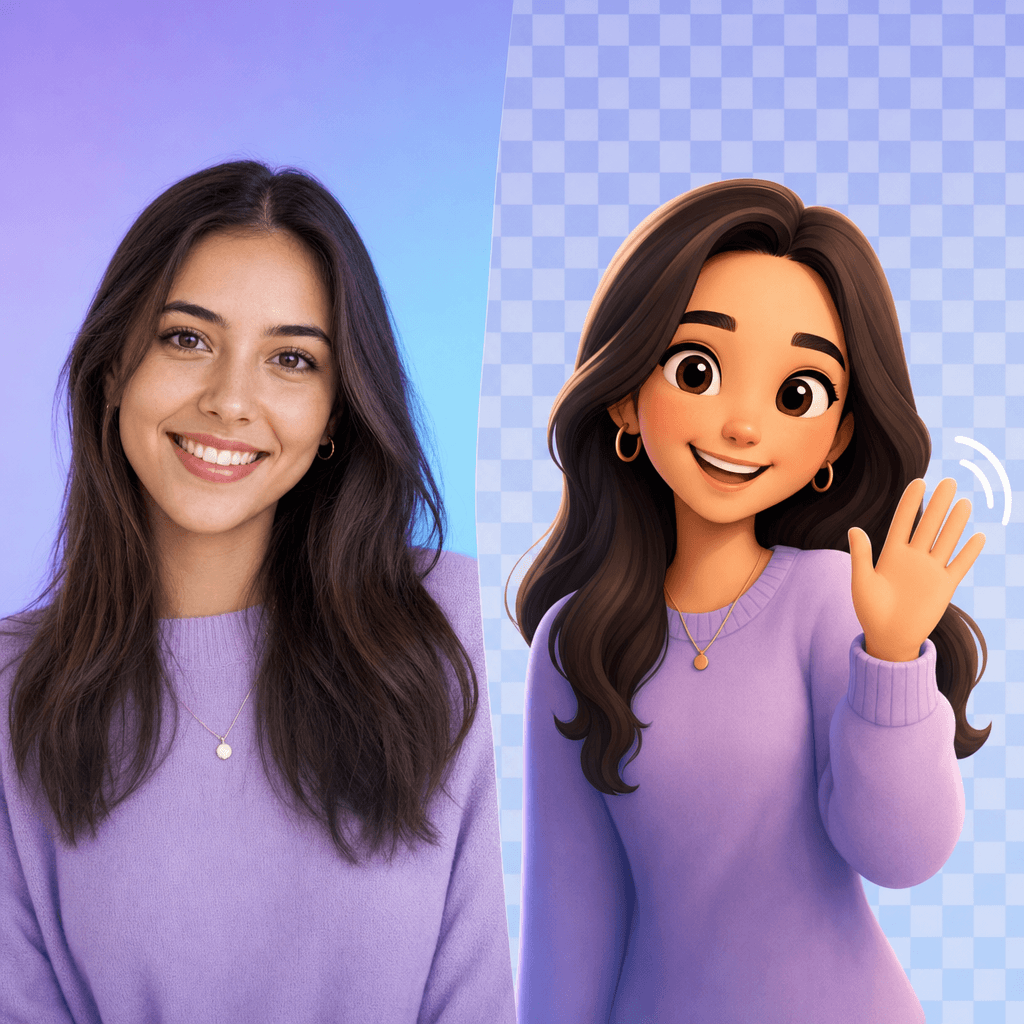
Twitch Emote From Photo: Turn One Image Into a Transparent, Looping Emote
A tested walkthrough of turning a photo into an animated Twitch emote: which photo to pick, what the 5-credit generation produces, honest 28px expectations, and how to upload the GIF.
Yes, you can turn a photo into a Twitch emote: EmoteLoop’s generator takes one photo (a selfie or an authorized subject), draws an 8-frame animated version of it, and hands you a transparent, looping GIF that fits Twitch’s auto-resize upload in a single step. The photo path costs 5 credits, usually finishes in 15–30 seconds, and — based on the recorded launch tests — produces an emote that still reads as the person at 28px, the smallest size Twitch uses in chat.
This guide walks the photo path end to end: which photo converts well, how the generation works, what the output actually contains, what likeness and readability to honestly expect, and how to upload the result. Everything below comes from recorded runs — provider tests from launch week and one live production run — not from marketing copy.
Why a photo path is different from the tools you’ve seen
Search for a Twitch emote from photo and you’ll mostly find two kinds of tools: resizers, which scale artwork you already have down to 112/56/28px, and general makers, which give you a canvas or template editor. Neither creates an animated emote from a photo — resizers need finished art as input, and template editors expect you to draw.
Twitch’s own Easy Animate doesn’t fill the gap either: it applies a preset animation (shake, spin, slide) to a static emote PNG you upload — the art still has to exist first.
The photo path is a third thing. You supply a description of the scene and one photo; the model generates a brand-new 8-frame animation in which the face from your photo is the subject. The output is drawn from scratch — a cartoon likeness of the person, animated, with the background removed.
Step 1 — Pick a photo that converts well
The recorded tests that produced recognizable likenesses (2 out of 2 photo runs) started from a clear, front-facing face. You don’t need a studio shot, but the model has to see the face to draw it:
- One person, face clearly visible, looking at the camera.
- Even lighting beats dramatic shadows. A phone selfie in daylight works.
- Keep the description focused on the action you want (waving, nodding) rather than re-describing the face — the photo carries the likeness.
One rule matters before you upload anything: use a photo of yourself, or of someone who said yes. The site’s terms prohibit uploading other people’s photos without consent, photos of minors, and photos of public figures, and inputs pass moderation before generation. Mascot photos or original characters you own are fine — the same path applies.
Step 2 — Run the photo generation
The generator lives on the EmoteLoop homepage. You don’t need to configure anything: frames, timing, background and aspect ratio are fixed so every output is upload-ready.
- Open EmoteLoop’s generator and sign in when prompted (email or Google).
- Describe the emote — the scene and motion you want, up to 500 characters. Keep it about the action: “waving hello”, “sipping coffee, then grinning”.
- Click Add a selfie (optional) and upload your photo. The page confirms “your emote will be based on this face.”
- Generate. A photo run uses 5 credits (a text-only run uses 4) and usually finishes in 15–30 seconds.
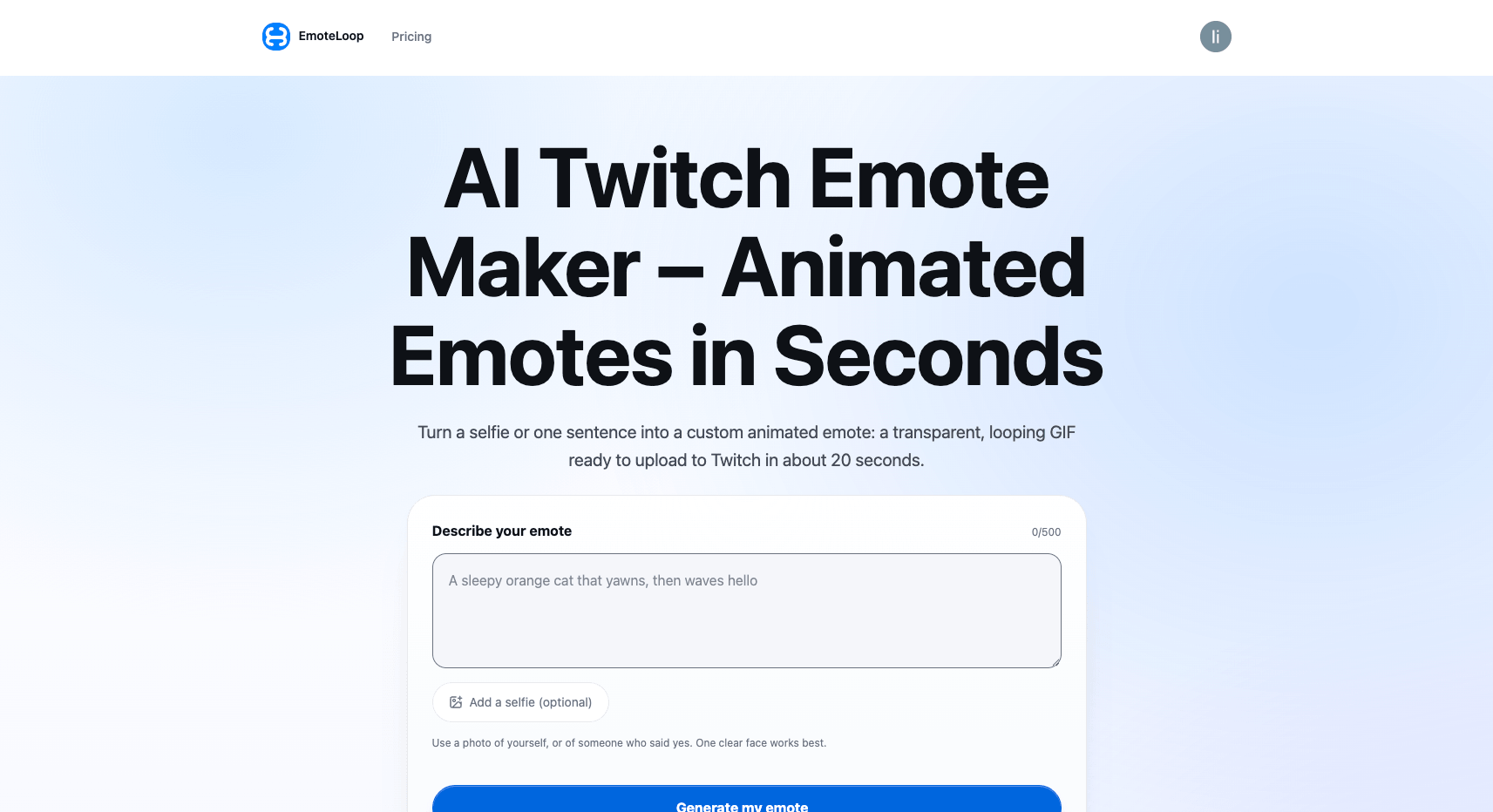
The photo path lives on the homepage generator: describe the motion, add one selfie, generate.
Two things worth knowing before you spend:
- New accounts get a one-time grant of 4 credits — enough for one text-based emote, so your first photo run needs at least a small credit purchase.
- If a generation fails, the credits come back automatically, so a failed run doesn’t cost you the 5 credits.
Step 3 — Check the result before you upload
The result page shows the emote looping at full size, with three background toggles — checkerboard, light, dark — so you can confirm the transparency actually works against real chat backgrounds. Below the emote, live previews show how it looks at 112, 56 and 28px, the three sizes Twitch serves in chat.
On the recorded launch-acceptance run, the photo output measured exactly what the upload path expects: a 512×512 GIF, 8 frames at 100ms each, looping infinitely, with transparency verified frame by frame in code, at 733KB — inside Twitch’s 1MB auto-resize limit with room to spare.
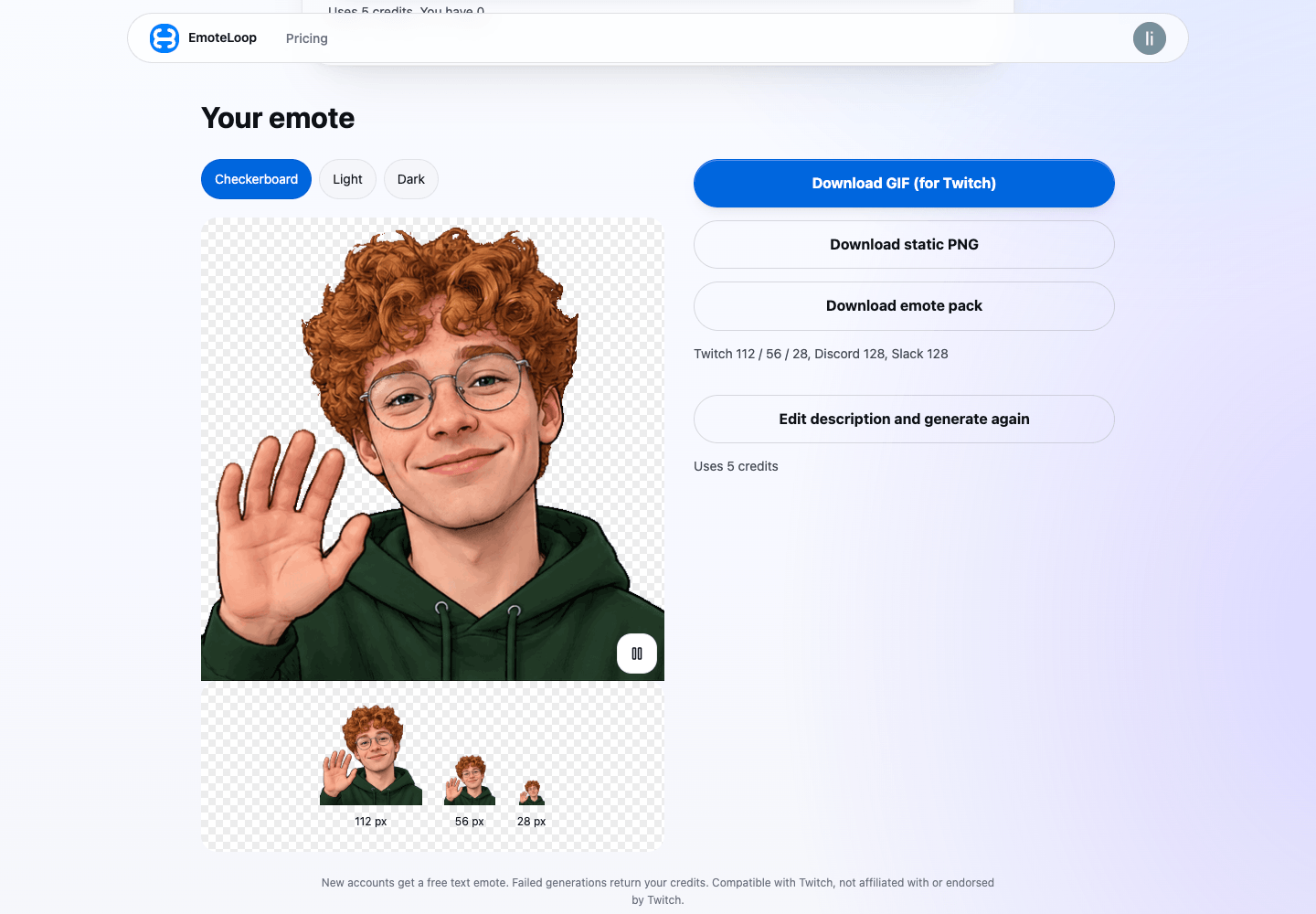
Recorded launch-acceptance run (2026-11-06): the result page previews 112/56/28 px over checkerboard, light and dark backgrounds.
Three downloads sit next to the preview:
- Download GIF (for Twitch) — the single file you’ll upload.
- Download static PNG — one frame exported at 512px, for static emote slots. This doesn’t cost credits.
- Download emote pack — a zip with Twitch 112/56/28 plus Discord 128 and Slack 128 versions, each sized for its platform’s file limits. On the recorded run, every file in the pack measured between 6.3KB and 45KB — far under Discord’s 256KB and Slack’s 128KB caps.
What likeness and readability to honestly expect
Here is where the recorded evidence should set your expectations, because one good run doesn’t mean every photo turns out equally well.
Likeness. In the recorded provider tests, both photo runs (2 of 2) produced emotes recognizable as the subject. The production acceptance run did the same — a photo of a person in a green hoodie came out as a cartoon that clearly read as the same person, curly hair and glasses included. But two runs are two runs: likeness depends on the photo (a clear face helps; a tilted, shadowed or busy-background photo strains it), and a cartoon style means simplified features, not a portrait trace.
Readability at 28px. The recorded spot checks found the emote still readable at 28px — but use the result page’s own 112/56/28 previews on both dark and light backgrounds before you commit. If the expression you chose reads as a smear at 28px, pick a simpler motion and generate again.
The loop seam. The known quality limit from the recorded tests: roughly 4 of 20 test generations showed a visible seam where the last frame jumps back to the first (measured on text generations; the photo path hasn’t been seam-tested at scale). If your emote visibly “resets” once per loop, that’s this limit — regenerating is the fix to try, and each run costs its own 5 credits.
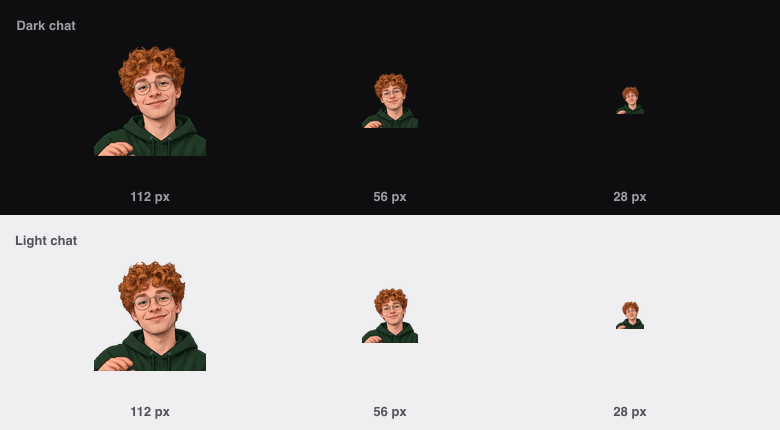
Actual pixel sizes, derived from the recorded launch-acceptance photo output (2026-11-06): check both dark and light chat backgrounds before uploading.
Upload the GIF to Twitch
The 512px GIF is shaped for Twitch’s auto-resize mode, which is the default upload experience: you give it one square GIF between 112×112 and 4096×4096px, max 1MB and max 60 frames, and Twitch generates all the sizes itself. Your download already fits — 512×512, 733KB, 8 frames on the recorded run.
- Open your Creator Dashboard and go to the Emotes page. (Since May 2026, emotes are available to eligible streamers generally — onboarding happens in the dashboard — not just to Affiliates.)
- Upload the GIF, enter an emote name, and pick your emote code.
- Click Upload. The emote is saved to your library; the thumbnail defaults to the first frame of your GIF.
After upload, the emote is manually reviewed before it goes live — it shows as “Pending Approval” until then, unless your channel qualifies for instant emote upload. Two small print items from Twitch’s requirements: emotes must not flash more than three times per second (a gentle wave or nod is safely under), and animated emotes currently animate on Android and web — the animated experience for iOS viewers is still rolling out.
If you prefer manual mode (Twitch lets you turn auto-resize off and upload 28/56/112 separately, each capped at 512KB), use the emote pack zip — it contains exactly those three Twitch sizes, plus the Discord 128 and Slack 128 files if you want the same emote on other platforms.
The short version
One clear photo in, one upload-ready animated emote out: 512px transparent looping GIF, five credits, about half a minute. Check the 28px preview on dark and light backgrounds, regenerate if the loop shows a seam or the likeness disappoints, and upload the single GIF to Twitch’s auto-resize — the recorded runs say that’s all it takes.
Ready to see your face as a looping emote? Make one on EmoteLoop — describe the motion, add your selfie, and you’ll have a channel-ready GIF in one run.