
How to Make Animated Emotes Without Animation Skills (AI vs Manual)
A step-by-step guide to making animated emotes with AI — describe it or upload a photo — plus honest quality expectations, the After Effects / Procreate / Clip Studio tradeoffs, and the exact Twitch, Discord and Slack requirements for an upload-ready loop.
Making an animated emote no longer requires knowing how to animate. There are two real routes: generate one with AI — you describe the emote or upload a photo, and a tool like EmoteLoop returns a transparent, looping GIF in about 20 seconds — or animate it by hand in After Effects, Procreate, or Clip Studio Paint, which costs hours per emote plus a learning curve measured in weeks. Either way, the finished file has to satisfy the same Twitch, Discord, and Slack rules before it goes live.
This guide walks through the AI route step by step, shows what the manual tools actually demand of you, and covers the checks that matter — loop quality, transparency, and small-size readability — so your emote is upload-ready the first time.
Key takeaways
- Twitch accepts one square GIF (112×112 to 4096×4096 px, max 1 MB, max 60 frames) in auto-resize mode and converts the sizes for you; manual mode wants 28, 56, and 112 px GIFs at 512 KB each.
- The AI route is: write a description (or upload a photo), generate, check the loop and transparency at small sizes, download, upload to Twitch.
- On EmoteLoop, every new account gets one free text emote, and a failed generation returns your credits — you can try the whole workflow for nothing.
- Manual animation buys pixel-level control at the cost of drawing skill, software, and hours per emote; AI buys speed and iteration at the cost of occasional imperfect loops.
- In our November 2026 provider tests, 20 of 20 generated GIFs succeeded and passed transparency checks; about 4 in 20 had a visible start–end seam, which is why the verification step below exists.
What platforms require from an animated emote
Whatever tool you use, the output has to fit these envelopes. All numbers below come from the official documentation for each platform, checked in November 2026.
| Platform | Format | Size | File limit | Notes |
|---|---|---|---|---|
| Twitch (auto-resize, default) | Animated GIF, square | 112×112 to 4096×4096 px | 1 MB | Twitch generates all display sizes from your file; max 60 frames |
| Twitch (manual mode) | 3 animated GIFs | 28, 56, and 112 px | 512 KB each | Missing sizes keep the emote from going live |
| Discord | Emoji (static or animated) | 128×128 px | 256 KiB | Upload through server settings |
| Slack | JPG, PNG, or GIF | Square | Under 128 KB | GIFs can include up to 50 frames |
Three rules apply everywhere. The background should be transparent so the emote sits cleanly on any chat theme. The animation should loop seamlessly — and on Twitch it must not flash or flicker more than three times per second. And Twitch uses the first frame of your GIF as the default thumbnail, so frame one should read on its own.
The AI route, step by step
This is the path for anyone who wants a finished, upload-ready emote today without opening an animation timeline.
Step 1: describe the emote — or upload a photo
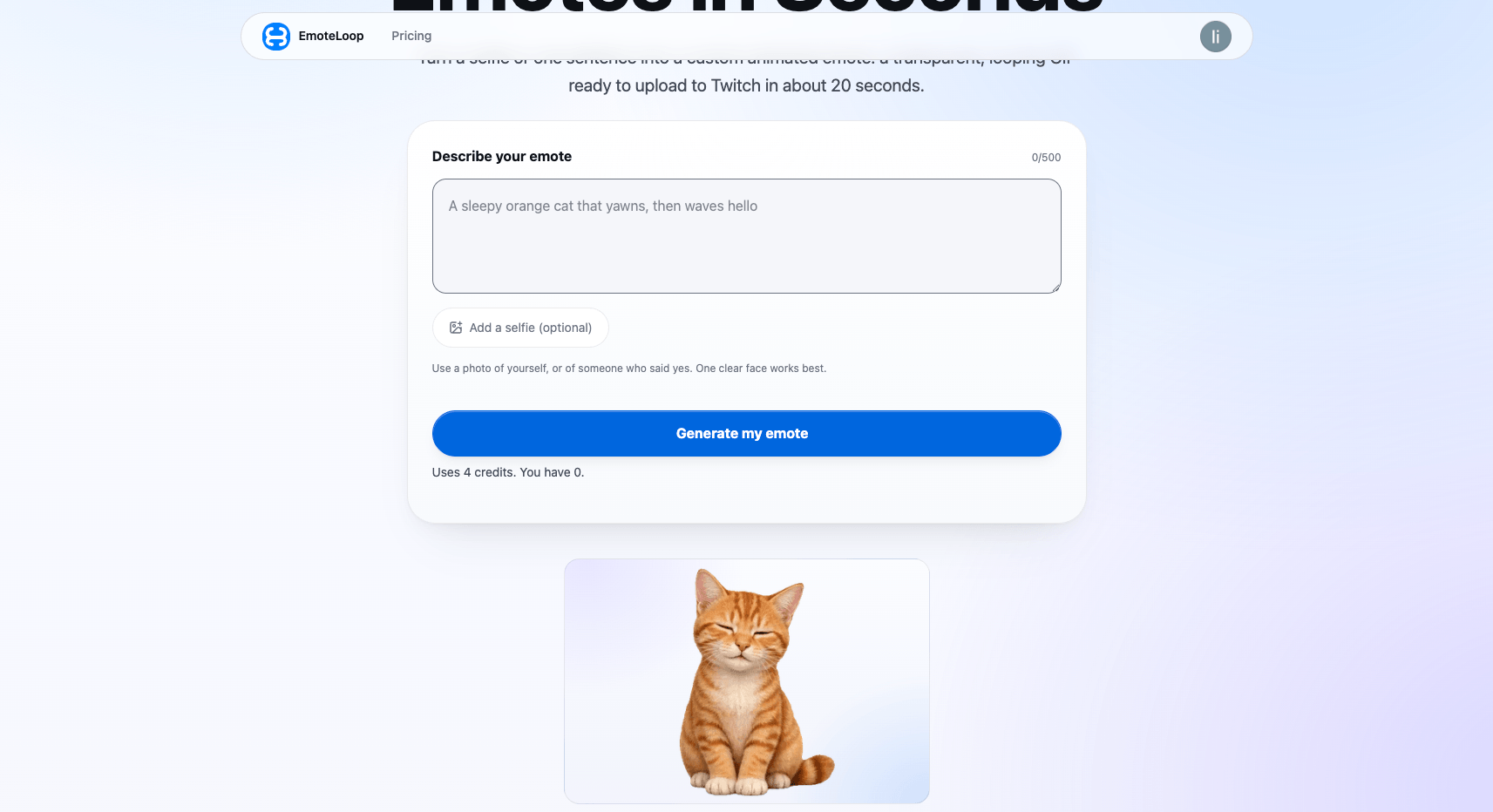
On EmoteLoop, you type up to 500 characters describing the character and the motion, and optionally attach one photo of yourself (or someone who said yes).
A good description names three things: the character (“a round blue monster”), the emotion (“hyped celebration”), and a motion that can return to its start (“cheers with both fists, then settles back”). Because an emote loops, describing a motion that ends where it begins is the single highest-leverage writing decision you’ll make.
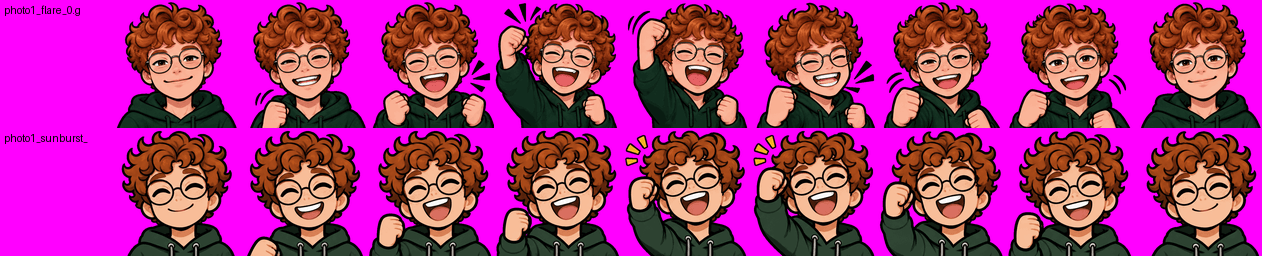
Photo-path test frames, November 2026 provider tests: the character keeps a recognizable likeness across the loop.
The photo path maps a face to an original character. In our November 2026 tests, both photo-to-emote attempts produced a recognizably similar cartoon version of the person — reasonable expectations, not a guaranteed likeness.
Step 2: generate
Generation takes roughly 15–30 seconds. The output is fixed to what platforms actually need: a 512×512 GIF, transparent background, 8 frames at 100 milliseconds each, looping forever, under 1 MB — exactly Twitch’s auto-resize envelope, with no settings for you to configure.
Text generation uses 4 credits; a photo generation uses 5, quoted before you commit. New accounts get a free text emote as a signup bonus, so the first run costs nothing — you can try the full workflow on EmoteLoop’s homepage. If a generation fails, the credits come back; every result is also code-checked for frame count, loop metadata, transparency, and dimensions before it reaches you.
Screenshot: emoteloop.com, accessed 2026-11-07.
Step 3: check the loop, transparency, and readability
Don’t skip this step — it’s where honest quality control happens.
EmoteLoop shows the result at real sizes (112, 56, and 28 px) against dark, light, and checkerboard backgrounds. Switch between them and ask two questions: does the character still read at 28 px, and does the animation restart without a visible jump?
In our November 2026 provider tests, all 20 generations succeeded with transparency verified in code, and the characters stayed readable when scaled down. About 4 in 20 had a visible seam where the last frame met the first — the known weakness of the current model. A visible seam is a reason to regenerate with a tighter motion description, not a reason to give up on the route.
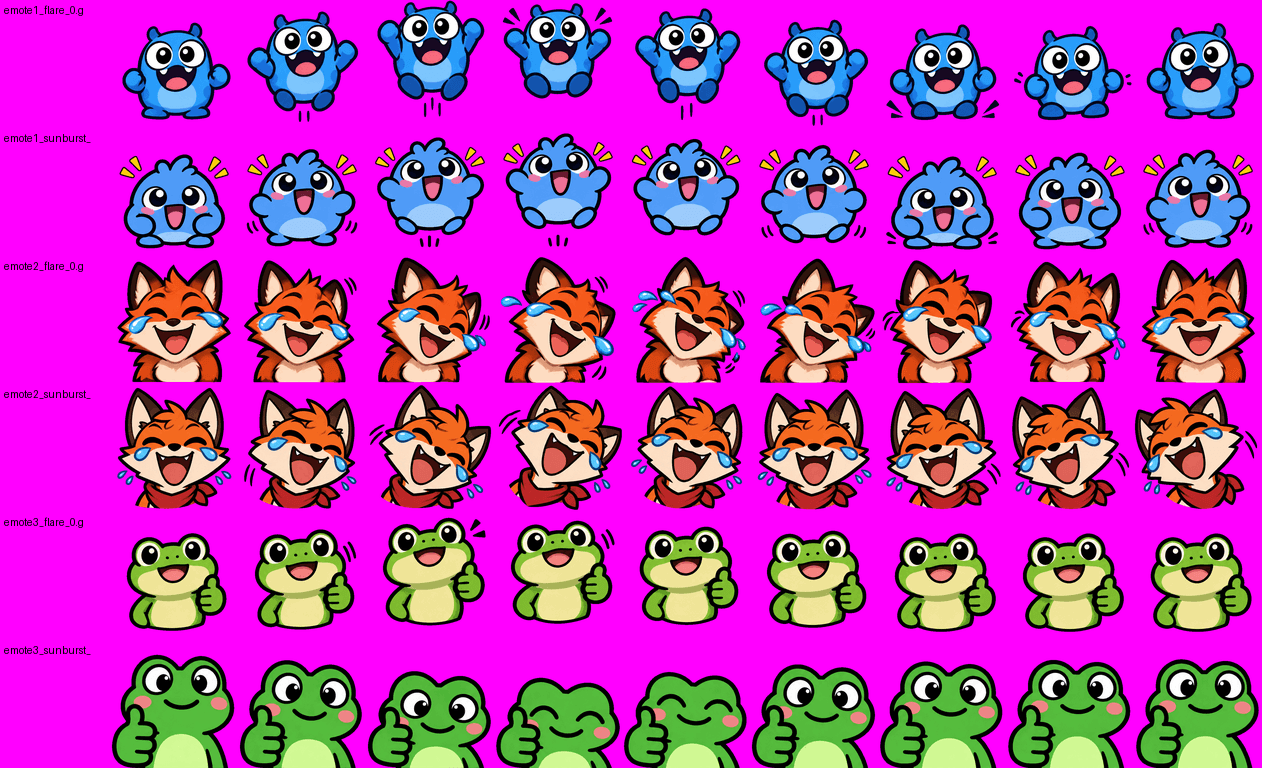
Test frames from EmoteLoop’s November 2026 provider tests (three descriptions × two model variants); the magenta background shows the GIFs’ transparency.
Step 4: download the files
Every generation gives you three downloads:
- The GIF — the single 512 px file Twitch’s auto-resize mode wants.
- A static PNG — pick any frame and save it as a transparent 512 px image, useful as a custom Twitch thumbnail or a regular static emote. No extra credits.
- An emote pack (zip) — Twitch 112/56/28 for manual mode, Discord 128 px under 256 KB, and Slack 128 px under 128 KB, each in its own folder with a file list.
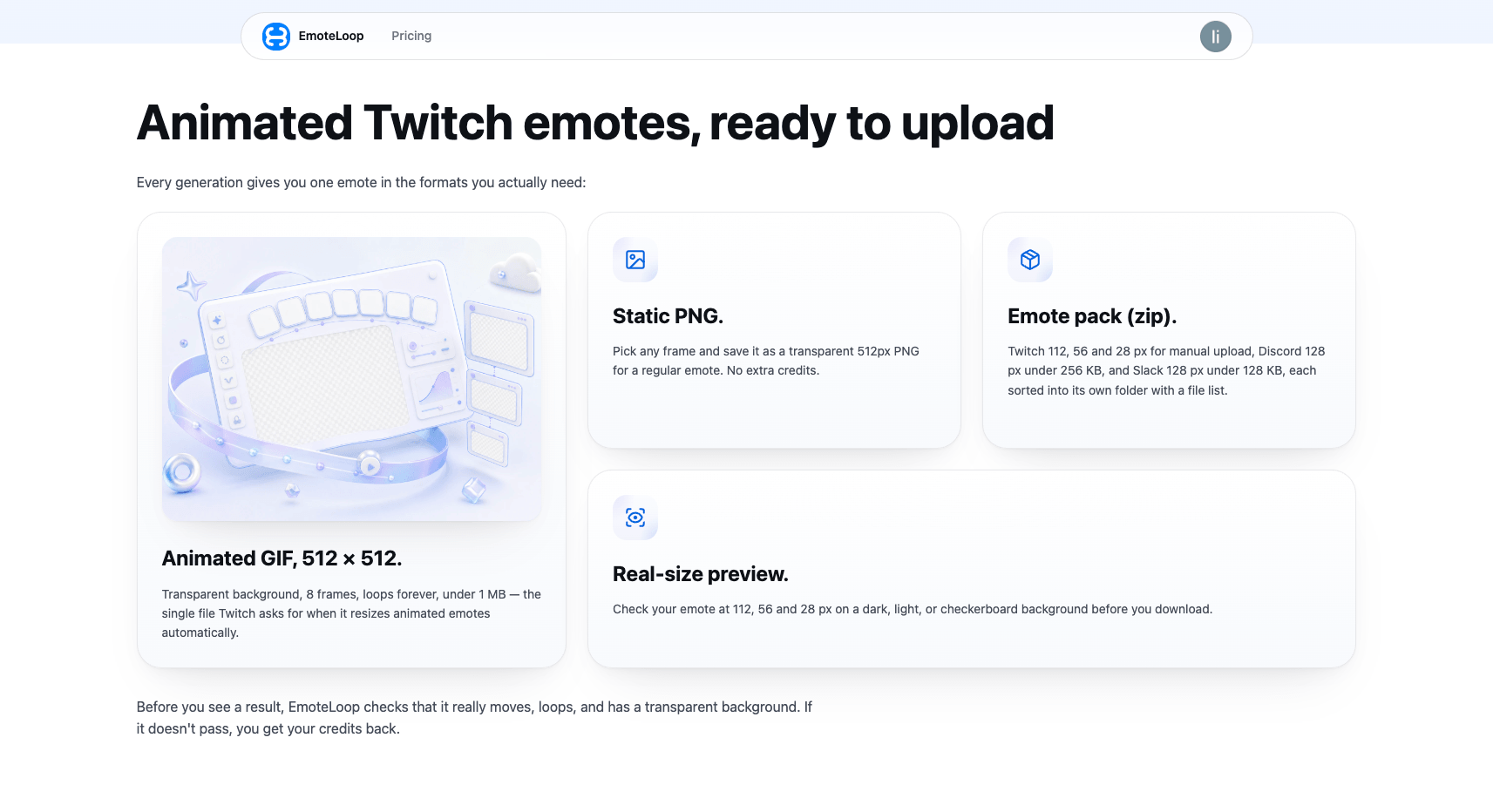
Screenshot: emoteloop.com, accessed 2026-11-07.
Step 5: upload to Twitch
In the Creator Dashboard, open the Emotes page and upload your GIF. Auto-resize is on by default: upload the single file, enter the emote name (your prefix plus the code viewers will type), and click Upload. Twitch then reviews animated emotes before they’re visible in chat — instant approval is reserved for creators who qualify, so expect a short wait.
Worth knowing: Twitch opened emotes to all eligible streamers in 2026 (“Monetization for All”), so you no longer need Affiliate status. First-time onboarding does ask for legal details and identity verification before the upload tools open, and an upload attempt we made in November 2026 stopped exactly at that verification step.
Discord and Slack need no dashboard: upload the pack’s 128 px files through server/workspace emoji settings, respectively.
The manual routes: what you’re signing up for
If you want full control — or you already draw — the traditional tools remain the standard. Here’s what each actually involves for a looping emote.
After Effects. The professional motion-graphics tool. You animate with keyframes and easing on a transparent composition, render the frames, and convert them to GIF through another step — Adobe documents a Media Encoder workflow specifically for exporting animation as GIF. Realistic cost: a subscription plus hours per emote, and the smoothest motion of the three if you already know the software.
Procreate (iPad). The most accessible hand-drawn option. Animation Assist gives you a frame-by-frame timeline, and Actions → Share → Animated GIF exports the result; GIFs loop by default and keep transparency. Realistic cost: an iPad, the one-time Procreate purchase, and every frame drawn by hand — 8 frames of a waving character is 8 drawings that must land back on frame one.
Clip Studio Paint. A desktop illustration app with an animation timeline for frame-by-frame work; its vendor’s own tips site hosts emote-animation tutorials that rank for this exact search. Realistic cost: similar to Procreate’s — drawing skill on every frame — with desktop precision and layer tools.
Manual routes win when you need pixel-perfect control of an existing art style, brand-consistent sets, or animation the current AI models can’t describe. The AI route wins on speed (a finished, verified file in under half a minute), on iteration (regenerate with a tweaked description instead of redrawing frames), and on not needing to learn animation at all.
Loop quality: the part that makes or breaks an emote
A bad loop reads instantly as amateur work, whatever tool made it. Three practical rules:
- End where you started. The last frame should sit on or near the first frame’s pose. This is a writing decision in the AI route (describe motions that “return”) and a drawing discipline in the manual route.
- Respect the flash rule. Twitch rejects GIFs that flash or flicker more than three times per second — an accessibility rule for photosensitive viewers. Strobing effects are out; so is a fast two-frame alternation of extreme colors.
- Design frame one as the thumbnail. Twitch defaults the emote’s static thumbnail to your GIF’s first frame, so frame one should carry the character’s identity even before anything moves.
The seam issue we measured (about 4 in 20 generations) is the honest ceiling of the AI route today. It’s also cheap to fix: regenerate, or describe the motion as slower and rounder. Manual animation has no such seam problem — but it has its own failure mode, hand-drawn frames that drift off-model.
Transparency and small sizes
Transparency failures are invisible until your emote sits on someone’s dark-mode chat. Check every file against at least two backgrounds — light and dark, plus a checkerboard if the tool offers one. EmoteLoop verifies transparency in code on every result, so a generation either ships with alpha or doesn’t ship; if you export manually, look specifically for white halos around the character, the classic leftover of a sloppy background knockout.
Small sizes are the other quiet killer. An emote spends most of its life at 28 px in chat. In our tests, characters stayed readable when scaled down, but a busy design with thin outlines can still mush out — the real-size preview exists precisely so you catch that before upload. If the 28 px preview is unclear, simplify: fewer details, bolder silhouette, stronger color contrast.
One format note for Slack pack users: Slack accepts GIFs up to 50 frames, so the 8-frame standard output sits comfortably inside that limit.
Which route should you pick?
- You want a finished emote today, and you don’t draw. AI route, no contest. The first text emote on EmoteLoop is free, so the experiment costs nothing.
- You have a mascot or art style that must match exactly. Manual route — you’re paying for control the AI can’t guarantee.
- You need a full set of emotes this week. AI route for volume, with manual polish on the two or three most-used emotes if needed.
- You’re a streamer who also draws. Procreate or Clip Studio for craft; AI for the quick reaction emotes your chat asks for mid-stream week.
- Your budget is zero. AI route: signup credits cover one complete text generation, download pack included.
The short version
Animated emotes used to mean choosing between learning After Effects and paying an animator $10–35 per emote. The AI route collapses that: describe the character and motion — or upload one photo — and get a transparent, looping, size-verified GIF with a full platform size pack in about 20 seconds, free the first time. Manual tools still own pixel-perfect control, but they charge hours per emote for it. Check the loop, check the small sizes, upload through Creator Dashboard, and your emote goes from idea to your channel’s chat in an afternoon.
If that first emote is waiting on your channel: make your first animated emote free on EmoteLoop — one text generation, covered by the signup credits.